
PowerPoint Zoom-In Title Animation
To create a zoom-in title animation in PowerPoint, duplicate a slide containing your title, enlarge the title on the second slide, and apply the Morph transition to that second slide. PowerPoint creates the movement between the two layouts.
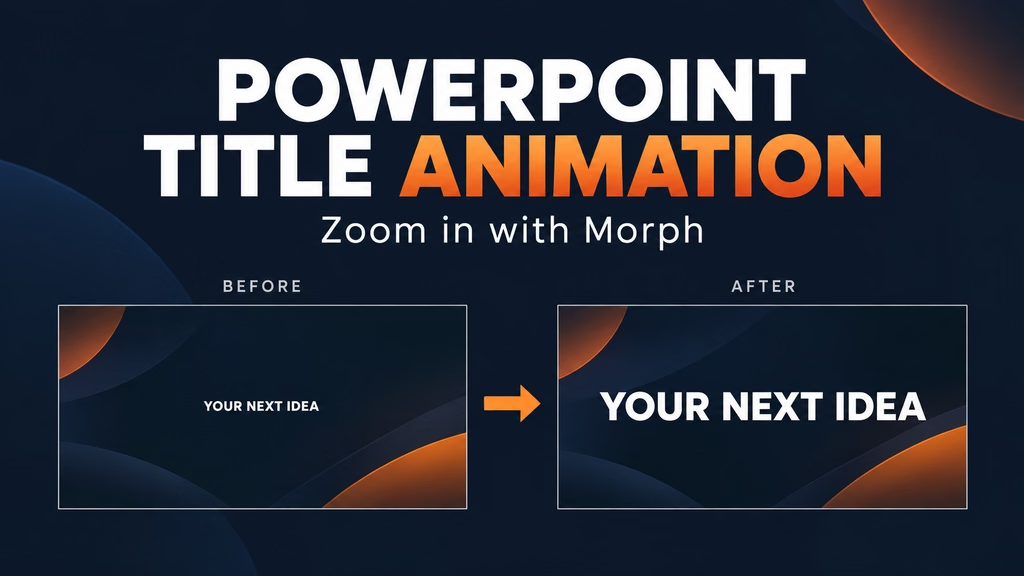
This tutorial uses a simple two-slide design: a small title in the middle of a dark slide becomes a large heading. Use the effect to introduce a presentation topic or mark a new section.
Plan your title design
Use a short title such as YOUR NEXT IDEA. Long sentences are harder to fit when the text grows.
Start with these settings, then adjust them to suit your title and screen:
- Slide size: Widescreen, 16:9
- Background: Dark navy, #101827
- Title: YOUR NEXT IDEA
- Typeface: Aptos Display Bold
- Starting font size: 32 pt
- Ending font size: 80 pt
- Text color: White
- Position: Center
Use another bold font if Aptos Display is unavailable. Keep enough empty space around the heading for the larger version.
1. Build the starting slide
Create a blank slide and give it the dark background. Insert one text box and type your title. Set its font size to 32 pt.
Make the text box wide enough for the final title, then center the text inside it. Position the box near the middle of the slide. A wide box helps prevent the heading from wrapping onto a second line when you enlarge it.
Keep this first example simple: one heading and one background. Add decorative shapes after the title movement works.
2. Duplicate and enlarge the title
Duplicate the starting slide. On the duplicate, increase the heading to 80 pt and adjust its position so it remains centered.
Keep the same text box and wording. Replacing the title with a newly inserted box can make matching less straightforward.
If the heading wraps, widen the box or reduce the ending font size. Check that the full title stays inside the slide. Aim for a clear change in scale without clipping any letters.
3. Apply Morph to the second slide
Select the second slide in the thumbnail pane. Open Transitions, choose Morph, and select Objects under Effect Options for this whole-title movement.
Start with a duration of 1.00 second, then click Preview. Try a shorter duration for a quick reveal or a longer one for a slower introduction. The timing is a creative choice; judge it using your actual title.
Apply the transition to the destination slide. In this example, that is slide 2.
4. Check the result in Slide Show
Start Slide Show on slide 1, then advance to slide 2. Watch the title grow into its final position.
Check the result at the size your audience will see it. A heading that looks attractive in the editor may feel too large on a small screen. Leave comfortable space around the final title and use enough contrast for easy reading.
Why does the title fade instead of zoom?
First, check that slide 2 uses Morph. Then confirm that it contains the duplicated title rather than an unrelated replacement.
If matching still fails, open the Selection Pane and name the title object !!TopicTitle on both slides. Use that name for only one object on each slide. Microsoft documents this naming method for explicitly matching objects across consecutive slides.
Also check your PowerPoint version. Some older versions can play Morph without allowing you to create it. See Microsoft’s requirements in the references below if the transition is missing.
Can I make the title move as it grows?
Yes. Move the enlarged title to a different position on the second slide. For example, start with a small centered heading and end with a larger heading near the top, leaving room for section content beneath it.
Keep the movement purposeful. A presentation opening usually needs one clear reveal, followed by enough time for viewers to read the heading.
Is this the PowerPoint Zoom feature?
Here, “zoom-in” describes the title getting larger. This tutorial uses Morph between slides. PowerPoint’s separate Zoom feature is used for presentation navigation and is not required for this effect.
Continue your presentation
For more background, read the Morph transition in PowerPoint guide. If you need slide layouts for the rest of your presentation, browse the free PowerPoint templates.